Go to Forms → New Form in left-side WordPress menu.
Select Blank Form, enter a title then hit Create Blank Form button.
To add fields, find the appropriate field type form the right-side menu, then drag it to the space in the middle.
Use fields under Advanced Fields for name, email, phone as those add special features.
To modify field settings, select the field then click the Field Settings tab in the right-side menu.
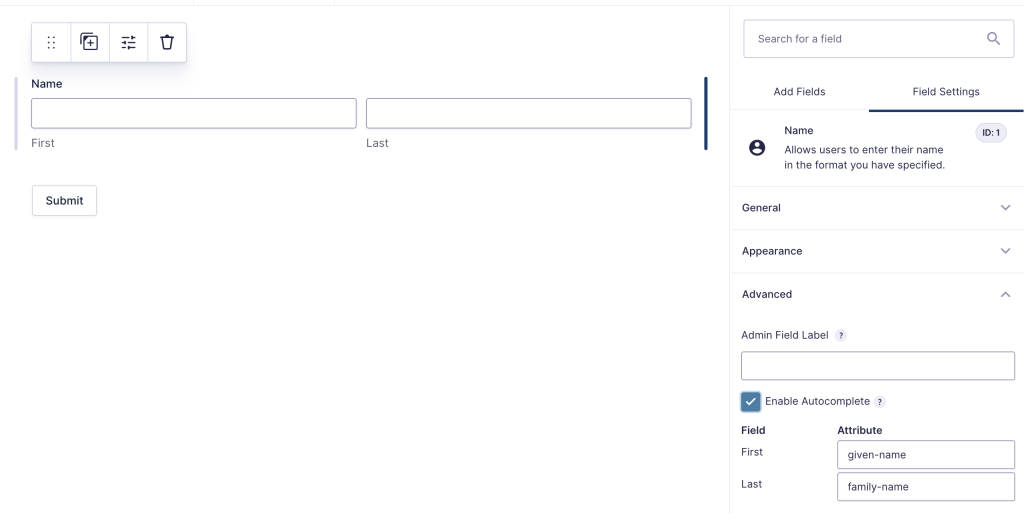
Enable autocomplete for certain fields to meet WCAG 2.2/2.1 Level AA ADA accessibility
For example, add the Name field then select it and click Field Settings. Scroll down to Advanced, click that tab, then check Enable Autocomplete. The field names should autopopulate.
Only name, phone, email, and address need autocomplete selected.
Hit the Save button when you’re done.
Add the form to a page and test it. Entries go into Forms → Entries for future reference.
Accept PayPal payments:
Go to Forms → Settings in left-side WordPress menu.
Click PayPal Checkout tab
Leave the Live radio button selected, then click “Connect with PayPal” and enter your PayPal email and password in the pop up box then the remaining security info.
Go to your Form that needs to accept payment, hover over Settings and select PayPal Checkout. Click Add one under Feeds and complete the form.
In the Form edit area, under Pricing Fields add Product then under Field Settings in the right-side menu, add the desired cost in the field.
Test using a coupon code so you only pay $1.00 or less. To create a coupon go to Forms → Coupons then add the Coupon field to your page.